


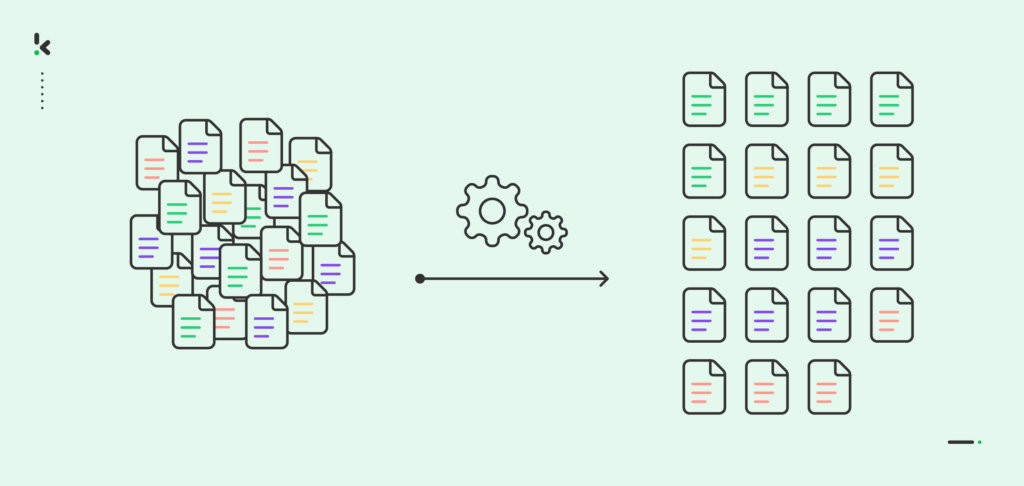
If your document management process still relies on a shared drive, tribal knowledge, and someone manually dragging PDFs into folders, you don’t have a process. You have a risk.
The scale of the problem is bigger than most teams realize. According to Adobe Acrobat (2023), 48% of employees struggle to find documents quickly and efficiently, and nearly three in four say poor digital organization interferes with their ability to work effectively. When documents keep arriving from email, portals, scans, and shared drives, the manual sorting backlog grows faster than any team can keep up with.
AI document sorting solves exactly this. With the right setup, every document gets classified, labeled, and routed automatically, so your team spends less time searching and more time on the work that matters.
Key Takeaways
- AI document sorting uses OCR, NLP, and classification models to categorize documents automatically and route them to the right destination
- Document categorization (assigning meaning) and document sorting (taking action) are two distinct steps
- AI sorting works across finance, HR, legal, healthcare, and any other function that handles high document volumes
- The best setups combine AI classification + routing rules + human review for edge cases
- Setting up AI document sorting follows a repeatable process: connect your source, configure classification, define routing rules, and enable human fallback
- Benefits go beyond speed: fewer errors, stronger compliance, better searchability, and earlier fraud and duplicate detection
What is Document Sorting?
Document sorting is the process of organizing documents based on specific criteria such as document type, supplier name, date, or department. The goal is to ensure every document ends up in the right place, with the right label, so it can be found, processed, and acted on without friction.
Whether you are sorting contracts, invoices, patient records, or HR files, document sorting brings order to both physical and digital document flows. At scale, doing this manually is error-prone and expensive.
Document Sorting vs. Document Categorization: What’s the Difference?
People use these terms interchangeably, but they solve slightly different jobs:
- Document categorization = assigning meaning (labels/tags)
Example: “This is an invoice from Supplier X for Entity Y in hospitality.” - Document sorting = taking action based on that meaning
Example: “Move it to Drive/Finance/Invoices/2026/Q1 and route it to AP approval.”
In practice, you want both:
- Categorize first (understand what it is)
- Sort second (do something useful with it)
That’s the core of modern AI document management.
Why Manual Sorting Breaks at Scale
Manual document sorting fails for the same reasons in every organization:
- Volume outpaces headcount: Email attachments, portal uploads, scans, and API feeds arrive faster than any team can process them manually
- Inconsistency creeps in: Two people categorize the same document differently, and there is no way to enforce a standard at scale
- Hidden costs compound: Time spent searching, misfiling, and reworking incorrectly sorted documents adds up to a significant drag on productivity
- Compliance risk grows: Sensitive documents end up in the wrong folders, retention rules get ignored, and audit trails fall apart
Even careful, diligent employees cannot escape the bottleneck. Manual sorting requires attention, context, and dozens of repetitive decisions every day.
How AI Document Sorting Works (OCR + NLP + Classification)
AI-powered document sorting combines Optical Character Recognition (OCR), Natural Language Processing (NLP), and machine learning classification into a single automated pipeline.
Here is how each stage works:
1. Data Capture + OCR
Documents arrive from email, upload portals, shared drives, scanners, or APIs. OCR reads the printed and often handwritten text and converts it into machine-readable content. This is the foundation: without accurate text extraction, the classification that follows cannot work reliably.
2. Understanding (NLP + Pattern Recognition)
AI models analyze the extracted text and document structure. They look for keywords and key-value fields, layout patterns (where totals, dates, and reference numbers appear), and contextual language that signals document type such as “invoice”, “payment terms”, “policy number”, or “patient ID”.
3. Classification
Based on its analysis, the model assigns each document:
- A document type (invoice, receipt, contract, ID document, claim, statement, etc.)
- Optional subcategories (department, entity, supplier, region, risk level, industry)
- A confidence score indicating how certain the classification is
High-confidence classifications move straight through. Low-confidence ones get flagged for human review.
4. Sorting + Routing
Once categorized, routing rules kick in automatically. The document gets moved to the right folder, named consistently, sent to the relevant approval workflow, archived in a document management system, or pushed into an ERP or CRM. Duplicates and anomalies get flagged before they cause downstream problems.
That is automated document sorting: classification followed immediately by action.
What You Can Sort and Categorize (Real-World Examples)
AI document sorting adds value anywhere documents arrive unstructured and need to leave organized:
Finance and Accounting
Sort invoices, receipts, credit notes, and bank statements by supplier, cost center, entity, currency, and tax type, then route each one directly to the right AP approval flow.
HR
Sort CVs, employment contracts, ID documents, and onboarding forms by candidate, role, location, and status, and trigger the appropriate tasks in your HRIS or ATS automatically.
Legal and Compliance
Sort legal documents such as contracts, NDAs, case files, and correspondence by client, case number, renewal date, and clause type, and apply the correct retention policies and access controls from day one.
Healthcare and Regulated Industries
Sort patient records, lab results, referrals, and consent forms by patient ID, department, urgency, and compliance class, reducing time-to-information without compromising privacy or regulatory requirements.
Logistics and Freight
Sort logistics documents such as bills of lading, commercial invoices, packing lists, and customs declarations by shipment reference, carrier, port of loading, and HS code, then route each one straight into your TMS or customs filing system.
A Practical Framework: Rules + AI Confidence + Human Fallback
The highest-performing setups don’t choose between rules and AI. They combine them:
- AI categorizes (document type + tags + confidence)
- Rules sort based on those tags (folder, routing, naming, destination system)
- Human-in-the-loop catches edge cases
If confidence < threshold → send to review
If fraud/duplicate indicators → escalate - Feedback improves accuracy over time
This is how you keep automation reliable and scalable.
How to Sort and Categorize Documents with AI (Step by Step)
Setting up AI document sorting follows a consistent process regardless of the platform or document types involved. Here is a practical walkthrough of the key stages:
Step 1: Audit Your Document Flows
Before configuring anything, map where your documents come from (email, scanners, portals, shared drives, APIs) and where they need to end up (folders, approval queues, DMS, ERP). Identify the document types you handle most frequently and prioritize those for your first classification model.
Step 2: Connect Your Document Sources
Most intelligent document processing platforms let you connect directly to the systems where documents already live, such as cloud storage like Google Drive or SharePoint, email inboxes, or upload portals. Connecting at the source means documents are picked up automatically as they arrive, with no manual handoff required.
Step 3: Configure Your Classification Model
Set up the document types you want to classify and the metadata fields you want to extract alongside them. For financial documents, for example, you might classify by type (invoice, receipt, credit note) and extract fields like supplier name, total amount, and invoice date. Most platforms offer pre-trained models for common document types that you can adapt to your specific needs.
At this stage, also enable any additional processing you need, such as duplicate detection, fraud indicators, or data anonymization, so these run automatically alongside classification.
Step 4: Define Your Routing Rules
With your classification model ready, build the routing logic that decides what happens after a document is classified. Rules combine document type and extracted metadata: for example, “if document type = invoice and entity = Company A, move to Folder X and notify the AP team.” Keep rules specific enough to be useful, and start with your highest-volume flows first before adding complexity.
Step 5: Set Your Confidence Threshold and Human Review Queue
Decide at what confidence level the system should act automatically versus flag a document for human review. A common starting point is to auto-route documents above 90% confidence and queue anything below that for a reviewer. Your reviewers’ decisions feed back into the model, improving accuracy over time.
Step 6: Test, Review, and Iterate
Run a batch of documents through the pipeline before going live. Check classification accuracy, review the routing output, and fix any mismatches in your model or rules. AI document sorting improves continuously, the more documents the model sees and the more reviewer feedback it receives, the more accurate it becomes.
Benefits of Automated Document Sorting (Beyond “Saving Time”)
Speed is the obvious win, but AI document sorting delivers a range of benefits that go deeper:
- Faster retrieval and fewer operational bottlenecks: When every document is categorized consistently, search and handovers become predictable.
- Fewer errors (and less rework): AI doesn’t get tired. It applies the same logic every time and flags uncertainty instead of guessing.
- Stronger compliance and access control: Correct categorization supports retention, GDPR processes, and controlled access to sensitive files.
- Better fraud and anomaly detection: Automated sorting can be paired with duplicate detection, metadata checks, and “this doesn’t match the pattern” alerts.
- Cleaner downstream systems: When categorization is done upfront, your ERP/CRM/accounting data becomes more reliable, too.
Best Practices and Common Pitfalls
A few principles separate successful implementations from ones that stall:
- Start narrow, then expand: Pick your highest-volume, most consistent document type and get that working well before adding complexity. Trying to classify twenty document types at once leads to poor accuracy across all of them.
- Invest in clean training data: The quality of your classification model depends on the quality of the examples it learns from. Make sure your training documents are representative of what actually arrives in production.
- Do not skip the human fallback: Fully removing human review sounds efficient but creates fragility. A well-designed review queue handles the edge cases AI cannot yet handle confidently, making the whole system more trustworthy.
- Monitor accuracy over time: Classification accuracy drifts as document formats change or new suppliers and document types appear. Set a regular review cadence to catch issues early.
- Name files consistently from the start: Automated sorting works best when combined with consistent file naming conventions based on extracted metadata. Document output structure is easier to maintain when it is part of the initial setup rather than retrofitted later.
Intelligent Document Sorting and Categorization with Doxis AI.dp
Doxis AI.dp is an Intelligent Document Processing (IDP) platform that enables you to automate the workflows from document conversion to sorting and archiving. By integrating various Doxis AI.dp modules and your preferred applications, you can create an effortless and unique workflow to suit your needs.
- Create custom workflows: Design personalized document workflows by linking various AI.dp features such as data extraction, capture, conversion, anonymization, verification, classification, and more.
- Enjoy extensive document compatibility: Handle documents in any Latin-based language, and tailor data fields for extraction based on your specific requirements.
- Seamless integration: Our platform supports over 50 integration options, allowing easy connection with cloud solutions, email parsing, CRM, ERP, and accounting software.
- Security & compliance: With ISO 27001 certification and GDPR compliance, Doxis ensures your data remains secure and adheres to regulatory standards.
- Scalability: Doxis’ bulk upload feature lets you efficiently sort files simultaneously, accommodating your growing business needs.
- Data management: Streamline processes for better data organization, enabling quick search, retrieval, and analysis to support informed decision-making.
Ready to reap the benefits of automated document sorting? Schedule a free online demo today or talk to our experts!
FAQ
AI document sorting is the automated process of classifying documents by type and metadata, then routing them to the correct destination such as a folder, approval queue, or downstream system. It combines OCR, NLP, and machine learning to replace manual sorting with a consistent, scalable workflow.
2. How is AI document sorting different from manual sorting?
Manual sorting requires a person to review each document, determine its type, and move it to the right location. AI document sorting does this automatically, in seconds, at any volume, with consistent accuracy that does not degrade with fatigue or workload spikes.
3. How accurate is AI document classification?
Accuracy depends on the quality of the training data and the consistency of the documents being processed. Well-implemented systems achieve above 95% accuracy on high-volume, structured document types. A human-in-the-loop review queue handles the remaining edge cases.
4. What happens when AI is not confident in a classification?
Documents that fall below a defined confidence threshold are flagged and sent to a human review queue rather than routed automatically. The reviewer’s decision is then fed back into the model, improving accuracy for similar documents in the future.
5. Can AI document sorting integrate with existing systems?
Yes. Most AI document processing platforms integrate with common storage systems (Google Drive, SharePoint, OneDrive), document management systems, ERPs, CRMs, and accounting software via API or native connectors.
6. How long does it take to set up AI document sorting?
For standard document types using pre-trained models, a basic setup runs within days. More complex implementations with custom document types, multi-step routing logic, or deep system integrations take longer, but follow the same structured setup process.
7. Is AI document sorting suitable for small businesses?
Yes. While the efficiency gains are most visible at high document volumes, small businesses benefit from the consistency and time savings that automated sorting provides, especially in finance and HR workflows where document accuracy directly affects compliance.